> ## Documentation Index
> Fetch the complete documentation index at: https://docs.okatee.com/llms.txt
> Use this file to discover all available pages before exploring further.
# Usage Instructions
> Using the extension inside the Gmail compose window
Okatee integrates directly into Gmail compose windows, providing one-click metadata removal for all supported file types.
## Supported File Types
DOC, DOCX, XLS, XLSX, PPT, PPTX, PDF, JPG/JPEG, and PNG.
## Sending Clean Attachments
1. **Compose an Email**: Okatee inserts an **Attach and Clean** button into every Gmail compose window.
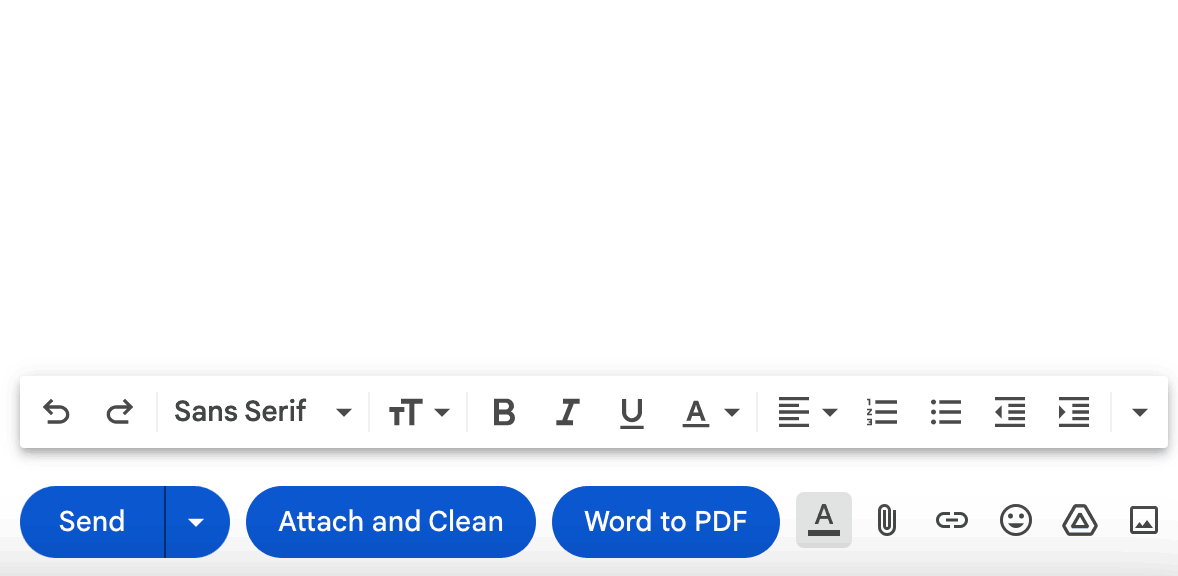 2. **Select Files**: Click the **Attach and Clean** button and choose the documents you want to attach.
3. **Automatic Processing**: Okatee removes metadata from the selected files and attaches the cleaned versions to your email automatically.
## Licensed Features
The following features require a valid license. See the [License](/essentials/license) page for details.
* **Bulk Clean**: Remove metadata from multiple files at once via the **Batch** tab in the extension settings. Drag and drop files or click to select, then download the cleaned versions.
* **Bulk PDF**: Convert multiple Office documents to PDF at once via the **Batch** tab.
* **Convert to PDF**: One-click conversion of Office documents to PDF, available as a button next to **Attach and Clean** in the compose window. Enable this in the **Preferences** tab.
* **Compression**: Automatically compresses documents to reduce file size before sending.
For detailed information on configuring all preferences and batch operations, see the [Settings](/essentials/settings) page.
Licensed features become available after entering your license key in the extension settings.
If you encounter any issues using Okatee with Gmail:
* **Extension is Enabled**: Verify Okatee is enabled in your Chrome browser extensions.
* **Browser Compatibility**: Ensure you are using a supported version of Google Chrome.
* **Permissions**: If the Attach and Clean button does not appear, enable the required permissions in the extension settings and refresh Gmail.
* **Contact Support**: For further assistance, email [support@okatee.com](mailto:support@okatee.com) with detailed information about the issue.
2. **Select Files**: Click the **Attach and Clean** button and choose the documents you want to attach.
3. **Automatic Processing**: Okatee removes metadata from the selected files and attaches the cleaned versions to your email automatically.
## Licensed Features
The following features require a valid license. See the [License](/essentials/license) page for details.
* **Bulk Clean**: Remove metadata from multiple files at once via the **Batch** tab in the extension settings. Drag and drop files or click to select, then download the cleaned versions.
* **Bulk PDF**: Convert multiple Office documents to PDF at once via the **Batch** tab.
* **Convert to PDF**: One-click conversion of Office documents to PDF, available as a button next to **Attach and Clean** in the compose window. Enable this in the **Preferences** tab.
* **Compression**: Automatically compresses documents to reduce file size before sending.
For detailed information on configuring all preferences and batch operations, see the [Settings](/essentials/settings) page.
Licensed features become available after entering your license key in the extension settings.
If you encounter any issues using Okatee with Gmail:
* **Extension is Enabled**: Verify Okatee is enabled in your Chrome browser extensions.
* **Browser Compatibility**: Ensure you are using a supported version of Google Chrome.
* **Permissions**: If the Attach and Clean button does not appear, enable the required permissions in the extension settings and refresh Gmail.
* **Contact Support**: For further assistance, email [support@okatee.com](mailto:support@okatee.com) with detailed information about the issue.